Research-led product guide
BlueDriver OBD2 Scanner: the answer in context
A BlueDriver that will not connect can fail at four different layers: the vehicle may not power the OBD2 port, the scanner may be in a startup or recovery state, the phone may not be paired through the correct path, or the app may connect but lack enhanced coverage for that exact vehicle. BlueDriver’s current support guidance separates scanner generations, LED states, a short pairing window, phone-specific recovery steps, and vehicle-identification issues. Work in that order and preserve reports before clearing app data or vehicle codes.
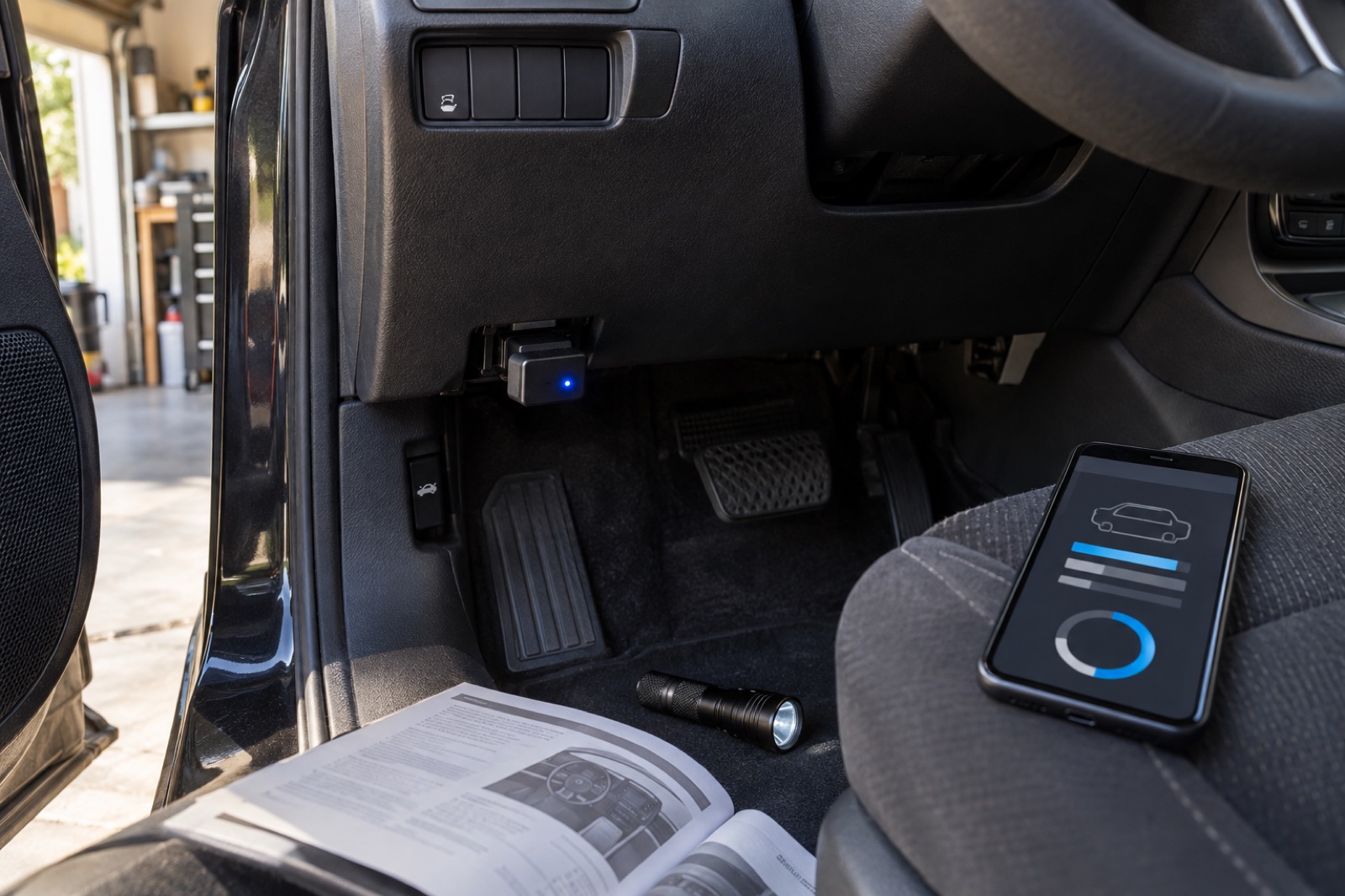
- Solid blue
- The scanner is starting and preparing to communicate
- Flashing red on BlueDriver Pro
- Powered and communicating with the vehicle, but not connected to the app
- Solid red
- Can indicate firmware recovery mode after an interrupted update
- Bluetooth LE
- Pair from inside the BlueDriver app, not ordinary phone Bluetooth settings
- No light
- Check OBD2-port power and the vehicle fuse identified by its manual
Our view is based on published specifications, manufacturer documentation, and category research. Where we have not performed hands-on testing, we do not imply that we have.
Start with four layers
Separate port power, scanner status, phone pairing, and vehicle coverage
Begin with the ignition in the position specified by BlueDriver and the vehicle manual. The current iPhone and Android instructions say the engine should be running or the ignition should be in Run. Plug the scanner in firmly and observe its light before changing phone settings.
If there is no light, stop treating the problem as Bluetooth. BlueDriver says vehicle-port power may be interrupted by a fuse, often one shared with a cigarette lighter or power outlet. Use the vehicle manual to identify the correct circuit; do not replace a fuse with a higher rating or probe unfamiliar wiring at random.
If the scanner lights up, identify the scanner type and LED state. Then isolate nearby phones, Bluetooth permissions, in-app pairing, and finally vehicle identification or enhanced coverage. This order avoids deleting useful data before the actual failure layer is known.
- Confirm ignition or Run position
- Observe the scanner light
- Identify Pro, LE, or Next-Gen behavior
- Save reports before resetting app data
LED color guide
The light tells you which side of the connection to investigate
BlueDriver’s current LED guide says solid blue is the startup state. Flashing blue means the scanner is communicating with a phone or tablet and may stop flashing after a short period so it does not distract during live-data logging.
For the BlueDriver Pro, flashing red means the scanner is fully powered and communicating with the vehicle but is not connected to the phone app. Check that Bluetooth is enabled, that the correct pairing method was used, that a previously paired nearby device has not connected first, and—on some Android phones—that Connect was tapped in the Scan Tool tab.
A solid red light immediately after plugging in indicates firmware recovery mode according to BlueDriver. This can follow interrupted power or phone disconnection during an update. The app may not connect normally, but BlueDriver says the firmware-update workflow can force a connection and reinstall the device firmware. Use official recovery steps and contact support if recovery fails.
Phone pairing
Bluetooth LE and classic scanners do not use the same pairing path
Check the scanner body. BlueDriver says a unit marked LE is Bluetooth Low Energy, while a unit without LE is a classic scanner; the Pro Next-Gen is always Bluetooth LE. LE scanners pair from inside the BlueDriver app rather than the iPhone or iPad Bluetooth settings. Bluetooth permission is required for that in-app pairing.
BlueDriver’s current guidance describes a 60-second pairing window after the scanner is inserted. Close the app, keep the ignition on, disable Bluetooth on nearby phones that previously used the scanner, unplug and reinsert the unit, reopen the app, and respond to the pairing prompt promptly. On Android, open the app and tap Connect when required.
If iOS shows a prior pairing that will not connect, BlueDriver recommends forgetting the device, cycling Bluetooth, reinserting the scanner, and reconnecting inside the app. On Android, clearing app data is a later step—not the first. Save reports first when using guest mode because clearing data returns the app to its default state.
No ABS or enhanced scan
A successful engine scan does not prove enhanced-system coverage
If Read Codes immediately runs an engine-light-only scan, BlueDriver lists three common explanations: the vehicle make may not support enhanced codes, the model may use a nonstandard or badge-engineered diagnostic system, or the vehicle may not have been identified successfully. Connection and enhanced coverage are separate questions.
Use the current BlueDriver compatibility checker with the country where the vehicle was sold new, year, make, model, and engine. Results can distinguish engine access from supported ABS, airbag, transmission, TPMS, 4WD or AWD, hybrid, service, and other functions. An OBD2 connector alone does not guarantee every module.
If the exact vehicle is listed with enhanced support and identification succeeded but All Modules or Common Dash Lights still does not appear, contact BlueDriver support through the app. Avoid repeatedly clearing codes while troubleshooting; save the scan, freeze-frame data, and conditions first.
When to stop
Protect the vehicle, the data, and the diagnostic plan
Do not continue if the OBD2 connector is damaged, loose, wet, unusually hot, or has bent pins. Do not force the scanner into a port or disassemble the vehicle wiring. When a fuse repeatedly blows, the port is dead after correct fuse verification, or the vehicle shows broader electrical symptoms, professional diagnosis is safer.
A scanner connection is only the beginning of diagnosis. BlueDriver can present codes, freeze-frame data, live data, Mode 6 results, repair reports, and supported enhanced modules, but the tool does not prove that the first listed component is defective. Use inspection, measurements, service information, and appropriate safety procedures before replacing parts or clearing evidence.
Frequently asked questions
What buyers ask about BlueDriver OBD2 Scanner
Why is my BlueDriver flashing red?
For BlueDriver Pro, the current support guide says flashing red means the scanner is powered and communicating with the vehicle but is not connected to the app. Check Bluetooth, pairing method, nearby paired devices, and the Android Connect control when applicable.
What does a solid red BlueDriver light mean?
BlueDriver says solid red immediately after insertion can indicate firmware recovery mode following an interrupted update. Continue through the official firmware-update recovery flow or contact BlueDriver support.
Why does BlueDriver have no light?
BlueDriver says this can indicate a vehicle-port power problem, often involving a fuse shared with a power outlet. Identify the correct fuse from the vehicle manual or qualified support rather than guessing.
Why does BlueDriver connect but show no ABS or enhanced scan?
The vehicle make or model may not support enhanced codes, the vehicle may not have been identified correctly, or exact module coverage may differ. Check the official compatibility tool using region, year, make, model, and engine.
Should BlueDriver LE be paired in phone Bluetooth settings?
No. BlueDriver’s current guidance says scanners marked LE and Pro Next-Gen units pair from inside the BlueDriver app. Bluetooth permission must be enabled.
Primary sources checked
Official documentation used for this guide
Specifications, software, bundles, warranties, and compatibility can change. These primary sources were checked while preparing this page; confirm the current information for the exact model before purchase.
Product links