Research-led product guide
WOLFBOX G900 Pro: the answer in context
A G900 Pro problem is easier to isolate when power, the wired rear camera, local Wi-Fi, storage, GPS, and parking power are treated as separate systems. Start with the symptom, protect any important footage, change one variable at a time, and use the current manual for the exact hardware revision. Stop using the unit if its cable, connector, enclosure, or power accessory is damaged or becomes unusually hot.
- Rear-camera signal
- The camera uses a physical rear-camera cable; Wi-Fi is only for the phone connection
- App connection
- Enable camera Wi-Fi, join the G900 Pro network in phone settings, then open the WOLFBOX app
- Storage
- The current manual lists Class 10 microSD support up to 512GB and an in-camera format control
- Parking mode
- Requires compatible hardwire power and does not provide remote cellular monitoring
- Safe stopping point
- Stop when wiring, connectors, the card slot, battery power, or the enclosure appears damaged
Our view is based on published specifications, manufacturer documentation, and category research. Where we have not performed hands-on testing, we do not imply that we have.
Start with the symptom
Do not reset the camera before preserving footage and identifying the failed layer
If the camera still records, copy any important front and rear files before formatting the card or restoring factory settings. Note whether the problem affects the display, both recordings, only the rear image, the phone app, GPS data, or parking operation. A narrow symptom is more useful than “the camera is broken.”
Confirm that the vehicle and power source match the current manual, that the power cable is connected directly as instructed, and that no adapter or multi-socket arrangement is starving the camera of current. WOLFBOX specifically warns that some two-in-one or three-in-one accessory sockets may not provide enough current.
Make only one change at a time and test after each change. A factory reset may restore settings, but it cannot repair a loose rear connector, damaged cable, unsuitable memory card, weak accessory socket, or incorrect hardwire installation.
- Save important clips first
- Write down the exact error or missing function
- Test with the supplied compatible power path
- Avoid changing power, card, wiring, and settings simultaneously
Rear camera missing or blurred
Inspect the complete wired signal path before changing display settings
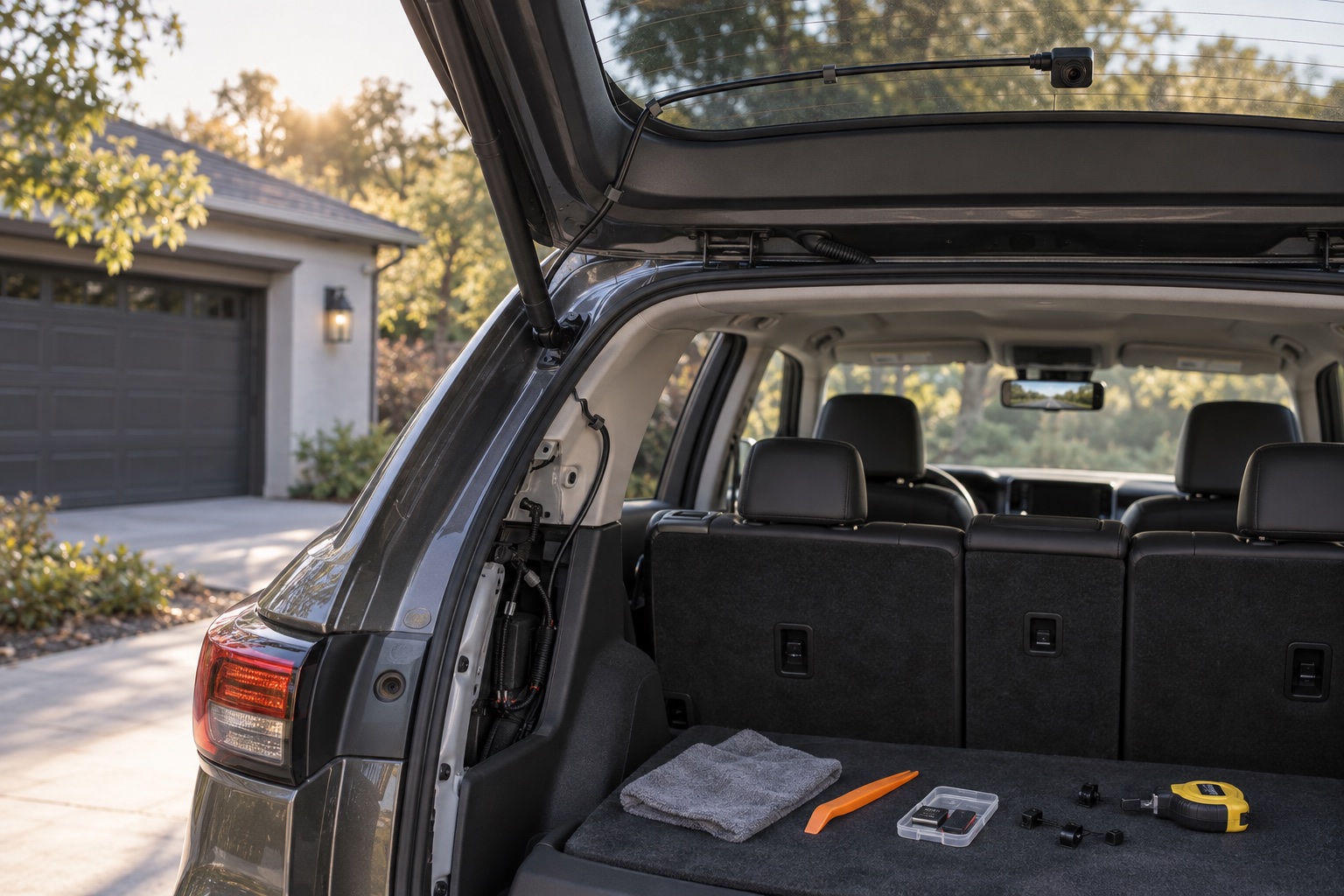
The G900 Pro rear camera is not wireless. The official manual says rear video travels through the included cable and that Wi-Fi is only used between the dash cam and a phone. If the screen reports that the rear camera is not detected, power the system down safely, reseat the REAR connection at the mirror, inspect the rear-camera connector, and examine the cable for pinching, cuts, sharp bends, pulled joints, or water exposure.
WOLFBOX warns against splicing or extending the rear-camera wire because the rear image may be lost. The included cable is listed at 20 feet. If it does not fit the vehicle, contact WOLFBOX for a compatible solution instead of joining the cable with an improvised extension.
For a blurred image, remove any remaining protective film, clean the lens with a suitable soft material, and check whether interior glass, rain, condensation, glare, mounting angle, or exterior contamination is the real cause. WOLFBOX says to contact support when focusing trouble appears related to high temperature.
Wi-Fi and app connection
Join the camera’s local network before expecting the app to show live video
Turn on Wi-Fi in the G900 Pro settings and confirm that the camera displays its network name and password. Install the current WOLFBOX app, open the phone’s Wi-Fi settings, join the G900 Pro network, and only then open the app. The current manual gives 12345678 as the default password, but owners should follow the password shown on their own device if it differs.
A phone may warn that the camera network has no internet. That is expected for a direct local connection; the purpose is to communicate with the camera. Temporarily disable automatic switching to mobile data or another known Wi-Fi network if the phone immediately leaves the camera network, and allow the app’s requested local-network permissions.
This Wi-Fi connection is short range. WOLFBOX states that it cannot be used for remote vehicle monitoring. If the network is visible and joined but the app still reports Connection Failed, use Get Support in the app or current WOLFBOX support rather than installing unrelated third-party software.
Not recording or card errors
A live picture does not prove that both camera files are being saved
Power the camera off before inserting or removing the microSD card. The current manual lists Class 10 storage up to 512GB and says cards above 32GB may need FAT32 formatting on a computer; use the current device manual and the camera’s own Format SD Card function as the controlling guidance for the exact card and revision.
After formatting, make a short test drive and review recent front and rear files. Confirm timestamps, audio choice, loop segments, GPS information when enabled, and playback on another device. Repeated format prompts, missing clips, corruption, slow playback, or gaps after a known-good power test can indicate an unsuitable, worn, counterfeit, or failing card.
Loop recording overwrites older unlocked files. Locked-event folders can consume space separately, especially when G-sensor sensitivity is too high for rough roads or door closures. Review protected clips before deleting or formatting, and replace a card that continues to fail after correct setup.
Power, parking mode, and GPS
Treat driving power, parked power, and GPS reception as three separate checks
With a normal accessory-power installation, the camera should follow the behavior of the vehicle’s ACC outlet. If it restarts, freezes, or loses the rear feed, test the supplied cable and a sound vehicle outlet before blaming software. Stop using any plug, cable, adapter, or connector that is loose, damaged, discolored, or unusually hot.
Parking mode requires a compatible hardwire kit. The manual describes time-lapse parking operation until the selected duration ends or vehicle voltage drops below its threshold. Incorrect fuse selection, ground, hardware revision, or wiring can prevent parking operation and can affect the vehicle, so use the vehicle and kit documentation or a qualified installer.
For GPS, confirm the external antenna is fully connected, mounted with the receiving side oriented as instructed, and given a clear view. Test in an open area before diagnosing it inside a garage or under heavy obstruction. A missing speed or route display can be a GPS connection or reception problem even when ordinary video recording continues.
Frequently asked questions
What buyers ask about WOLFBOX G900 Pro
Why does my WOLFBOX G900 Pro say rear camera not detected?
Power down safely, reseat the REAR connector, and inspect the full rear-camera cable and connector for damage. The rear feed is wired, and WOLFBOX warns against splicing or extending the cable.
Why will the WOLFBOX app not connect to my G900 Pro?
Enable Wi-Fi on the camera, join the G900 Pro network in the phone’s Wi-Fi settings, allow local-network permissions, and then open the WOLFBOX app. The camera network normally has no internet access.
Can I view my G900 Pro remotely over Wi-Fi?
No. WOLFBOX states that the built-in Wi-Fi is a short-range local connection and does not provide remote monitoring.
Why is my G900 Pro not recording to the SD card?
Confirm a compatible card and format, power off before reseating it, format through the camera when instructed, and verify recent front and rear files. Replace a card that repeatedly corrupts or produces gaps.
Why does G900 Pro parking mode not work?
Parking mode requires compatible hardwire power and correct installation. Verify the exact camera and kit revision, fuse sources, ground, settings, and vehicle battery condition.
Primary sources checked
Official documentation used for this guide
Specifications, software, bundles, warranties, and compatibility can change. These primary sources were checked while preparing this page; confirm the current information for the exact model before purchase.
Product links